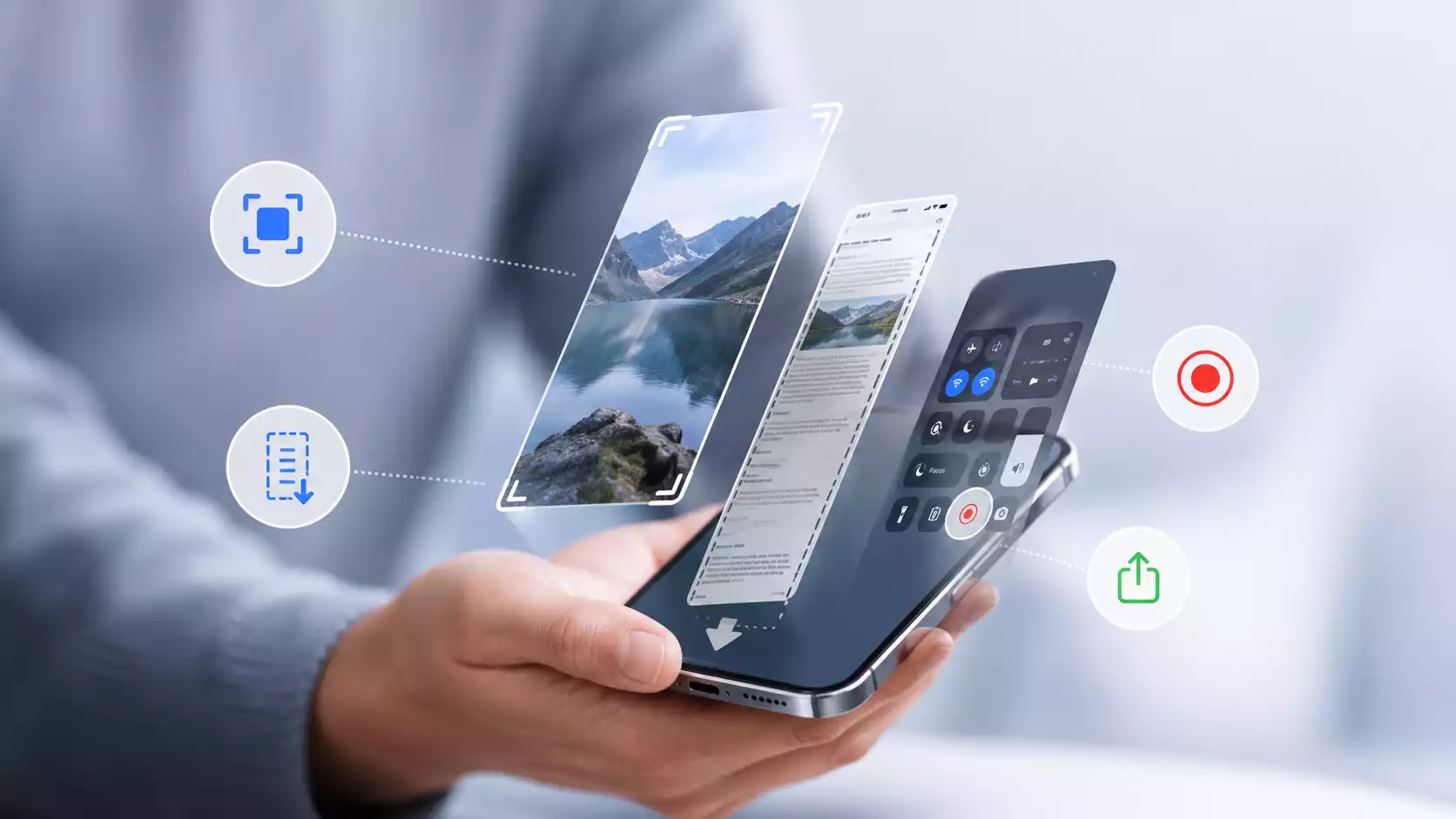
Screenshot, full page save, a short video from the app, or an instruction for someone who doesn’t know where to click – the phone today allows you to quickly keep what is happening on the display.
Depending on the situation, you can take a screenshot, use the scroll option or start recording the screen with sound.
Android and iOS offer similar features but differ in abbreviations, option names and where they save files. Below you will find a simple guide: How to take a screenshot, where to find a saved file, how to record a phone screen and what to do when the screen recording button is not immediately visible.
Table of Contents
Screenshot: when is a regular screen sufficient?
Screenshot that is screenshot, saves a single view from the phone. It is useful when you need to keep the order confirmation, error message, part of the conversation, QR code, application settings or important information from the website.
This is the simplest form of saving the image from the phone. A simple screenshot works when you want to show one specific thing. When you need to present a few steps one by one, a screen recording will be a better solution.
Before sending screen It is worth checking if it does not show personal data, order numbers, messages or notifications. Editing screenshots It allows you to quickly crop the image, blur sensitive fragments or mark an important place.
How to take a screenshot on Android?
In most Android phones, it is enough at the same time press the power button and the volume down button. The screen should blink and a screenshot thumbnail will appear on the display.
If the screenshot shortcut does not work, hold down the power button. In some models it appears then Menu with Screenshot. Names may vary depending on the manufacturer, but the principle remains similar: you open the view you want to save, use a shortcut and you’re done.
Save in the photo gallery takes place automatically. You will find the screenshot saved most often in the application Gallery Pictures or in a folder Screen shots. After clicking the thumbnail, you can immediately crop the image, add a marking, copy a screenshot or share the shot taken.

How to make a screenshot on iOS?
On the iPhone, the way the screen is made depends on the model. In newer devices with Face ID, you need to quickly press the side button and the volume up button. In models with Touch ID it is used side button and Home button.
After saving the image in the corner, a thumbnail of the screenshot appears. You can open it, edit it, delete it or send it right away. iOS also allows you to use accessibility such as AssistiveTouch so that the screen on your phone can be made without using the physical buttons.
In selected situations, it can also be helpful Siri or gesture of tapping on the back of the phone if you set such action in the system in advance. This is a good solution when you often take a screenshot repeatedly and want to speed up the whole process.
Take care of your phone screen
Full page screenshot and scrolling screenshot
A simple screen saves only what you see at the moment. When you want to keep a longer page, regulations, document or extensive description, it is useful Full page screenshot.
On Android, after taking a standard screen, the scroll option often appears. can be described as scroll screenshot long drop or Register more. The phone will then save a larger fragment of content, not only the current view.
On the iPhone, a similar function works, among others in Safari. After the screen is done, click the thumbnail and select an option The entire party. Such a full screenshot can then be saved or shared.
However, not every application allows such a record. If a scrolling screenshot is not available, it remains to take a few shorter screenshots or select only the most important part of the screen.

Screen recording on your Android smartphone
Recording the screen on an Android smartphone usually starts with quick settings panel. Just swipe from the top of the screen, expand the tiles and find the screen recording icon. Can be signed as Screen recorder Screen recording or Screen Recorder.
If the screen recording button is not visible, go to the shortcut editing and add it to the panel. After starting the function, the phone usually asks if it should save the image, sound from the device, recording from the microphone or both sources at the same time.
In many models, you can also show touches. This is useful when screen recording allows you to prepare instructions and the recipient should see where exactly you click. Upon completion, the file goes to a gallery or a folder with recordings.

How to record a screen in iOS?
On iPhones, the function available in control center. If you don’t see the appropriate icon, add it in the Control Center settings. Then just open the panel and click the recording button.
After a short countdown, iOS will start saving the image from the display. To end the recording, touch the red pointer at the top of the screen or reuse the icon in the Control Center. The finished file will be saved in the application photos.
Recording a screen with sound requires a microphone. To do this, hold down the recording icon and activate the recording from the microphone. Thanks to this, you can add a voice comment, e.g. when creating a guide or reporting a technical problem.
Stands, tripods and phone holders
Recording application: when the system function is not enough?
Built-in tools are usually sufficient for everyday use. An additional recording application may be needed when you want to change the quality of the movie, add a camera image, crop the material or prepare a more extensive instruction.
Popular examples include AZ Screen Recorder, XRecorder, Mobizen Screen Recorder, ACE Recorder, Recpro, Record It or Screencast-O-Matic. Such applications often offer video editing, fast sharing and additional save settings.
Before installing, however, check the opinions, permissions and updates. The screenshot or image recorder application has access to what is happening on the display, so it is worth choosing only proven tools.
Why can't you make a screenshot or record a screen?
Not every screen can be saved. Bank applications, payment applications, incognito mode or streaming services often block screening and recordings. Therefore, trying to make a Netflix screen may end up with a black image or a security message.
A part of the application with confidential data works similarly. It doesn’t have to mean a phone crash. In many cases, the blockade is deliberate and serves the protection of privacy, financial data or copyrights.
If the screenshot has been taken but you can’t find it, check the Screenshots folder, gallery, Photos app, and free space in your phone’s memory. When the recording function does not work, make sure that the corresponding button is added to the Quick Settings panel or Control Center. In older models, a separate application may be needed, but in most new phones, system tools are fully sufficient.
GSM service in practice - knowledge and offer for professionals
Do you run a GSM service and want to be always up to date with the technological challenges of the market? on our blog, in a dedicated category GSM service, you will find not only information about the equipment itself for the GSM service, but also practical guides related to solving technical problems, the course of repairs and daily customer service.
We discuss topics that help in faster diagnosis of faults, better explaining the operation of smartphones and more efficient communication with users of mobile devices.
In Partner Tele.com You will also find products useful in the daily work of the service: protective accessories for smartphones, glass and protective films, service tools, parts, technical chemistry and practical accessories supporting the repair, configuration and protection of devices.

Patrycja Blechinger_Partner Tele.com
Author and editor specializing in new technologies, e‑commerce and B2B/B2C communication. At Partner Tele.com, she develops educational and SEO content for the GSM accessories, consumer electronics and online sales sectors, combining editorial expertise with hands‑on experience in content marketing.
She has extensive experience in marketing, PR and sales. She has worked on communication campaigns, collaborated with PR agencies and created a wide range of content – from articles and industry publications to brand materials and advertising copy. This allows her to combine technological knowledge with a practical understanding of market and customer needs.
She focuses on topics related to modern technologies – from 3D printing and scanning to automation, e‑commerce and consumer electronics. She is the author of industry publications for Polski Przemysł, where she wrote about additive manufacturing and technological solutions for the industrial sector.
At Partner Tele.com, she also co‑creates communication for brand blogs, including Hoco and Forcell. She is currently expanding her knowledge in psychology, which supports her approach to audience analysis and creating content tailored to customer behavior.